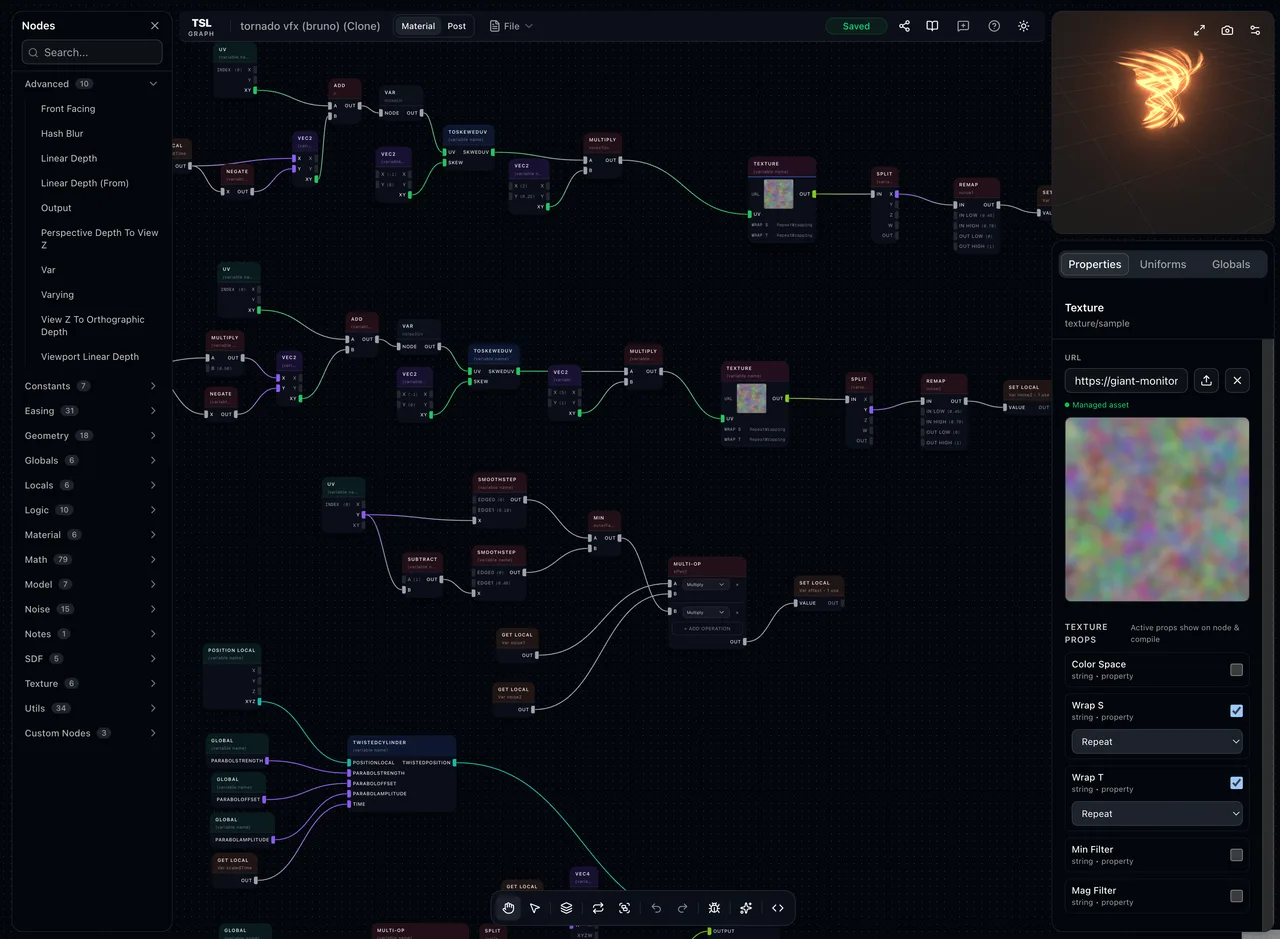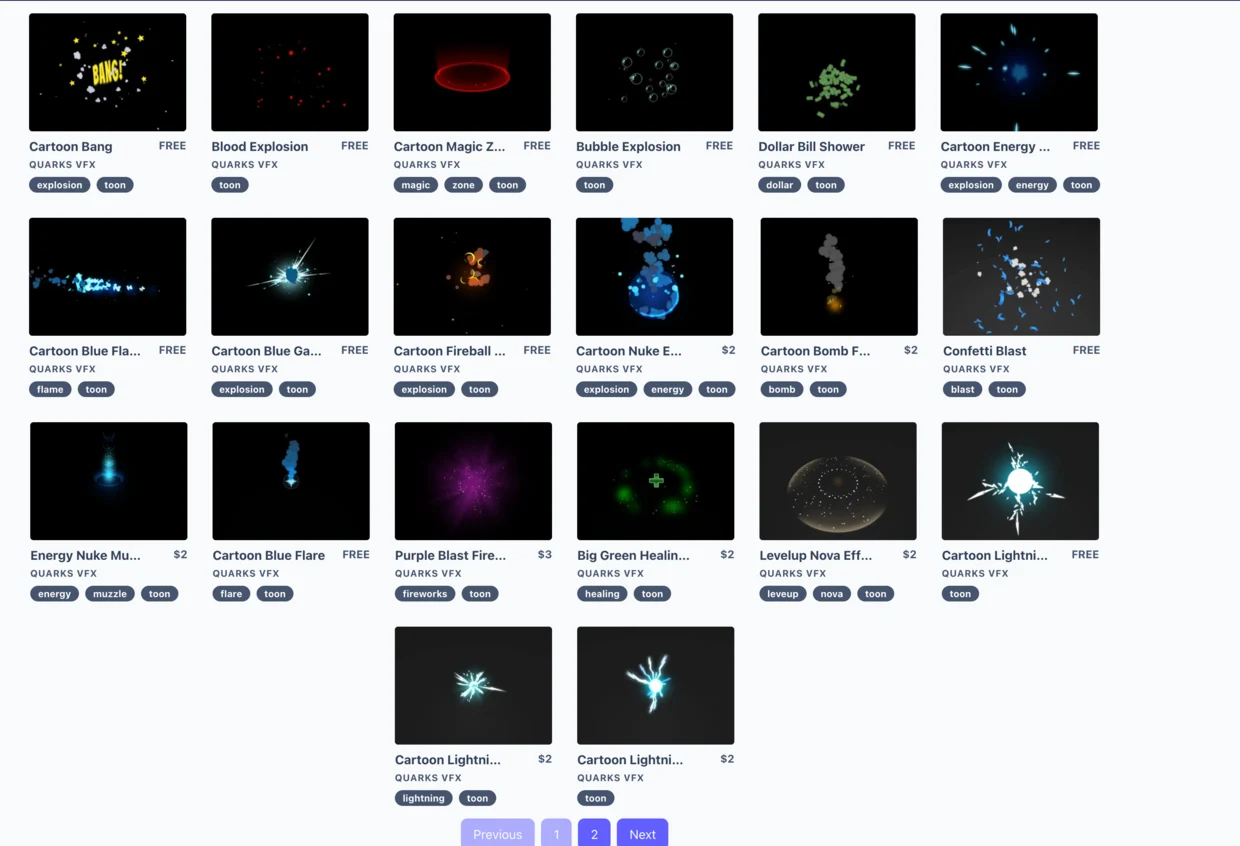
A spark burst is easier to tune when you can see the result as you adjust it. The Quarks editor lets you work on the emitter, curves, and rendering mode visually. Export the effect as JSON, then load it into a Three.js scene with three.quarks.
Build a small burst in the editor
Open the Quarks editor and start with a short, non-looping burst. Use a cone emitter for sparks that need a clear direction. A stretched billboard gives fast particles visible streaks. Give the particles a short lifetime and fade them out near the end. Adjust one property at a time so it is easy to see what changes the shape of the burst.
Load the export into Three.js
Install three.quarks alongside three and serve the exported effect at /effects/sparks.json. Keep any textures the export references available at their expected URLs. In a Three.js scene using the WebGL renderer, add one batch renderer and register the emitters from the loaded effect.
import { BatchedRenderer, QuarksLoader, QuarksUtil } from 'three.quarks';

const particleRenderer = new BatchedRenderer();
scene.add(particleRenderer);

const loader = new QuarksLoader();
loader.load('/effects/sparks.json', (effect) => {
  QuarksUtil.addToBatchRenderer(effect, particleRenderer);
  scene.add(effect);
});

// Add this to your existing frame loop.
function renderFrame(deltaSeconds) {
  particleRenderer.update(deltaSeconds);
  renderer.render(scene, camera);
}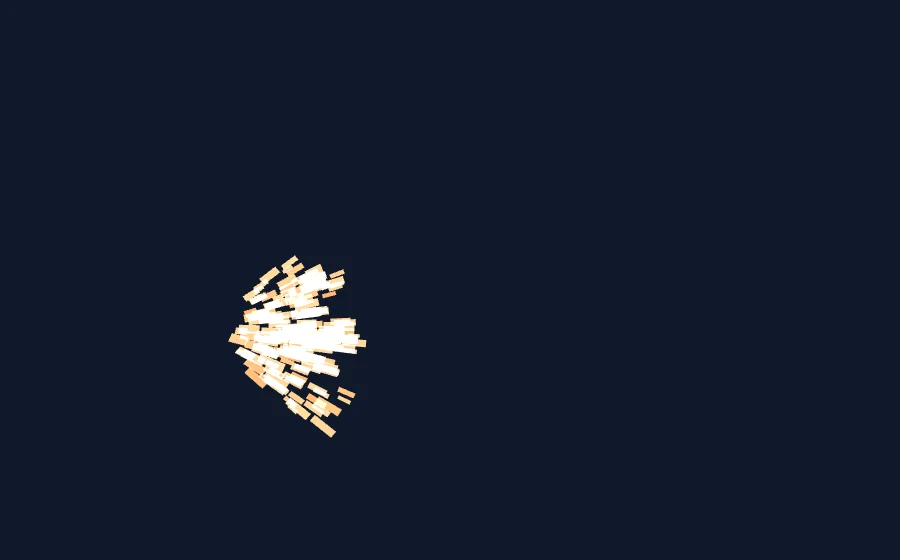
0.19 s · Early burst
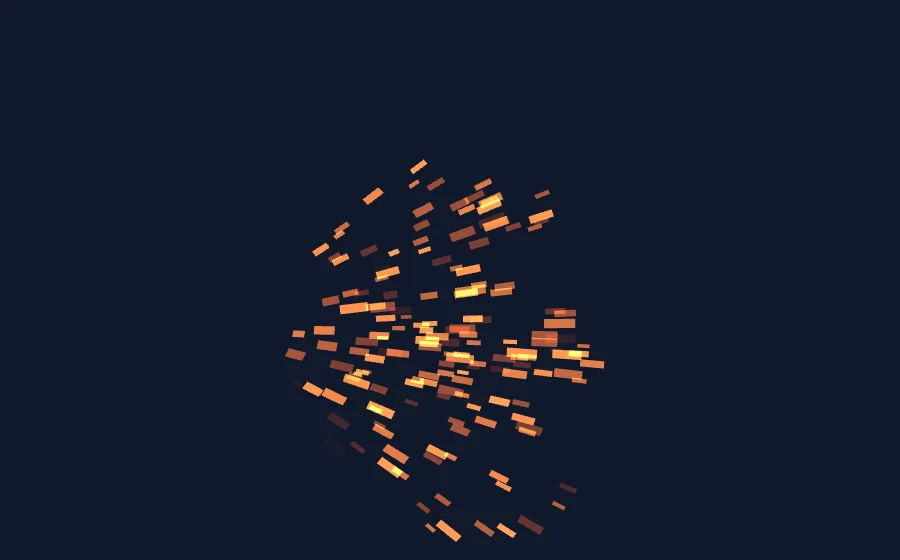
0.50 s · Dispersal
QuarksLoader. Fixed simulation steps make it possible to compare the stretched sparks near the emitter with their later spread and fade.
Three3D test scene · three.quarks JSON loading example.Check it in the real scene
Preview the effect at gameplay distance and against both bright and dark backgrounds. If you need many copies, reuse the batch renderer. Compatible systems can share a batch, but large overlapping transparent particles can still be expensive to draw. Check frame time with the number of effects you actually expect to have on screen.